> ## Documentation Index
> Fetch the complete documentation index at: https://hoopdev-fix-add-missing-mechanic-for-session-download-button.mintlify.site/llms.txt
> Use this file to discover all available pages before exploring further.

# Remote Desktop (RDP)

> Remote Desktop Protocol (RDP) allows accessing securely remote Windows instances via RDP protocol.

export const ConnectionTemplate = ({config}) => {
  const defaultConfig = {
    name: "Connection",
    description: "Connection description",
    features: {
      tlsTerminationProxy: {
        native: false,
        oneOff: false
      },
      audit: {
        native: false,
        oneOff: false
      },
      dataMaskingGoogleDLP: {
        native: false,
        oneOff: false
      },
      dataMaskingMSPresidio: {
        native: false,
        oneOff: false
      },
      guardrails: {
        native: false,
        oneOff: false
      },
      credentialsOffload: {
        native: false,
        oneOff: false
      },
      interactiveAccess: {
        native: false,
        oneOff: false
      }
    }
  };
  const finalConfig = Object.assign({}, defaultConfig, config);
  const renderIcon = enabled => {
    return enabled ? <Icon icon="check" /> : <Icon icon="xmark" />;
  };
  return <div>
      <h2>Before you start</h2>
      <p>To get the most out of this guide, you will need to:</p>
      <ul>
        <li>Either <a href="https://use.hoop.dev">create an account in our managed instance</a> or <a href="/getting-started/installation/overview">deploy your own hoop.dev instance</a></li>
        <li>You must be your account administrator to perform the following commands</li>
      </ul>

      {finalConfig.requirements && <>
          <h2>Requirements</h2>
          <p>{finalConfig.requirements.description}</p>
          {finalConfig.requirements.items && <ul>
            {finalConfig.requirements.items.map(item => <li>{item}</li>)}
          </ul>}
        </>}

      <h2>Features</h2>
      <p>The table below outlines the features available for this type of connection.</p>
      
      <ul>
        <li><strong>Native</strong> - Indicates the connectivity happens through the Hoop command line  (<code>hoop connect &lt;connection-name&gt;</code>) or acessing the protocol port directly on the gateway.</li>
        <li><strong>One Off</strong> - This term refers to accessing the resource from Hoop Web Console.</li>
      </ul>

      <table>
        <thead>
          <tr>
            <th>Feature</th>
            <th>Native</th>
            <th>One Off</th>
            <th>Description</th>
          </tr>
        </thead>
        <tbody>
          <tr>
            <td>TLS Termination Proxy</td>
            <td>{renderIcon(finalConfig.features?.tlsTerminationProxy?.native)}</td>
            <td>{renderIcon(finalConfig.features?.tlsTerminationProxy?.oneOff)}</td>
            <td>The local proxy terminates the connection with TLS, enabling the connection with the remote server to be TLS encrypted.</td>
          </tr>
          <tr>
            <td>Audit</td>
            <td>{renderIcon(finalConfig.features?.audit?.native)}</td>
            <td>{renderIcon(finalConfig.features?.audit?.oneOff)}</td>
            <td>The gateway stores and audits the queries being issued by the client.</td>
          </tr>
          <tr>
            <td>Data Masking (Google DLP)</td>
            <td>{renderIcon(finalConfig.features?.dataMaskingGoogleDLP?.native)}</td>
            <td>{renderIcon(finalConfig.features?.dataMaskingGoogleDLP?.oneOff)}</td>
            <td>A policy can be enabled to mask sensitive fields dynamically when performing queries in the database.</td>
          </tr>
          <tr>
            <td>Data Masking (MS Presidio)</td>
            <td>{renderIcon(finalConfig.features?.dataMaskingMSPresidio?.native)}</td>
            <td>{renderIcon(finalConfig.features?.dataMaskingMSPresidio?.oneOff)}</td>
            <td>A policy can be enabled to mask sensitive fields dynamically when performing queries in the database.</td>
          </tr>
          <tr>
            <td>Guardrails</td>
            <td>{renderIcon(finalConfig.features?.guardrails?.native)}</td>
            <td>{renderIcon(finalConfig.features?.guardrails?.oneOff)}</td>
            <td>An intelligent layer of protection with smart access controls and monitoring mechanisms.</td>
          </tr>
          <tr>
            <td>Credentials Offload</td>
            <td>{renderIcon(finalConfig.features?.credentialsOffload?.native)}</td>
            <td>{renderIcon(finalConfig.features?.credentialsOffload?.oneOff)}</td>
            <td>The user authenticates via SSO instead of using database credentials.</td>
          </tr>
          <tr>
            <td>Interactive Access</td>
            <td>{renderIcon(finalConfig.features?.interactiveAccess?.native)}</td>
            <td>{renderIcon(finalConfig.features?.interactiveAccess?.oneOff)}</td>
            <td>Interactive access is available when using an IDE or connecting via a terminal to perform analysis exploration.</td>
          </tr>
        </tbody>
      </table>

      {finalConfig.resourceConfiguration?.credentials && <>
      <h2>Configuration</h2>
      <table>
        <thead>
          <tr>
            <th>Name</th>
            <th>Type</th>
            <th>Required</th>
            <th>Description</th>
          </tr>
        </thead>
        <tbody>
          {Object.entries(finalConfig.resourceConfiguration.credentials).map(([key, credential]) => {
    if (typeof credential === 'string' || credential.hidden) return null;
    return <tr key={key}>
                <td>{credential.name}</td>
                <td>{credential.type}</td>
                <td>{credential.required ? 'yes' : 'no'}</td>
                <td>
                  {credential.description?.split(/(\[[^\]]+\]\([^)]+\))/).map((part, index) => {
      const linkMatch = part.match(/\[([^\]]+)\]\(([^)]+)\)/);
      if (linkMatch) {
        return <a key={index} href={linkMatch[2]} target="_blank" rel="noopener noreferrer">{linkMatch[1]}</a>;
      }
      return part;
    })}
                </td>
              </tr>;
  }).filter(Boolean)}
        </tbody>
      </table>
      </>}
    </div>;
};

<ConnectionTemplate
  config={{
"id": "remote-desktop",
"name": "Remote Desktop (RDP)",
"description": "Remote Desktop Protocol (RDP) allows accessing securely remote Windows instances via RDP protocol.",
"category": "infrastructure-access",
"icon-name": "tcp",
"tags": [
"remote",
"desktop",
"security"
],
"overview": {
"description": "Remote Desktop Protocol (RDP) allows accessing securely remote Windows instances via RDP protocol."
},
"setupGuide": {
"accessMethods": {
  "webapp": true,
  "native": true,
  "cli": false,
  "runbooks": false
}
},
"resourceConfiguration": {
"type": "custom",
"subtype": "rdp",
"command": [],
"credentials": [
  {
    "name": "HOST",
    "type": "env-var",
    "required": true,
    "description": "The host of the remote desktop server",
    "placeholder": "localhost"
  },
  {
    "name": "USER",
    "type": "env-var",
    "required": true,
    "description": "The username of the remote desktop server",
    "placeholder": "ubuntu"
  },
  {
    "name": "PASS",
    "type": "env-var",
    "required": true,
    "description": "The password of the remote desktop server",
    "placeholder": "password"
  },
  {
    "name": "PORT",
    "type": "env-var",
    "required": true,
    "description": "The port of the remote desktop server",
    "placeholder": "3389"
  }
]
},
"features": {
"tlsTerminationProxy": {
  "native": true,
  "oneOff": false
},
"audit": {
  "native": false,
  "oneOff": false
},
"dataMaskingGoogleDLP": {
  "native": false,
  "oneOff": false
},
"dataMaskingMSPresidio": {
  "native": false,
  "oneOff": false
},
"credentialsOffload": {
  "native": true,
  "oneOff": false
},
"interactiveAccess": {
  "native": true,
  "oneOff": false
}
},
"documentationConfig": {
"path": "quickstart/applications/remote-desktop"
}
}}
/>

## Supported Clients

| Client                               | Windows | Mac OS | Linux |
| ------------------------------------ | ------- | ------ | ----- |
| Remote Desktop Manager (Devolutions) | ❌       | ✅      | ❌     |
| FreeRDP                              | ✅       | ✅      | ✅     |

## How to Use It

<Note>
  This feature is still experimental, and we're working on expanding support to other RDP clients soon.
</Note>

<Note>
  Ensure that the Hoop Agent you are connecting to has the HOOP\_GATEWAY\_URL environment variable set to wss\://hostname:port.
</Note>

<Steps>
  <Step title="Download and Install the RDP Manager Client">
    [Remote Desktop Manager Client](https://devolutions.net/remote-desktop-manager/download/)
  </Step>

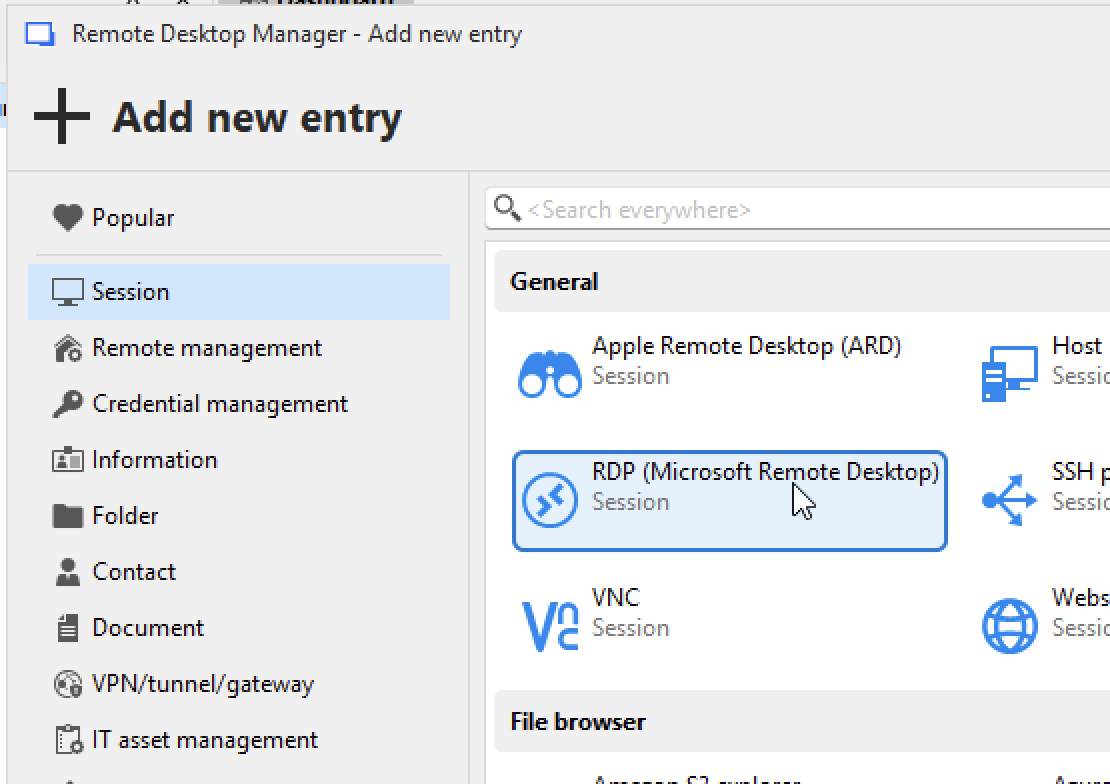
  <Step title="Add new Entry">
    Add a new Entry and select `RDP (Session)`

    <Frame>
      <img src="https://mintcdn.com/hoopdev-fix-add-missing-mechanic-for-session-download-button/sFiCJBagbVJ6Ho5V/images/quickstarts/rdp-connection-1.png?fit=max&auto=format&n=sFiCJBagbVJ6Ho5V&q=85&s=6416a99566ded78276947caf934b9f86" alt="Create RDP Session" width="1110" height="784" data-path="images/quickstarts/rdp-connection-1.png" />
    </Frame>
  </Step>

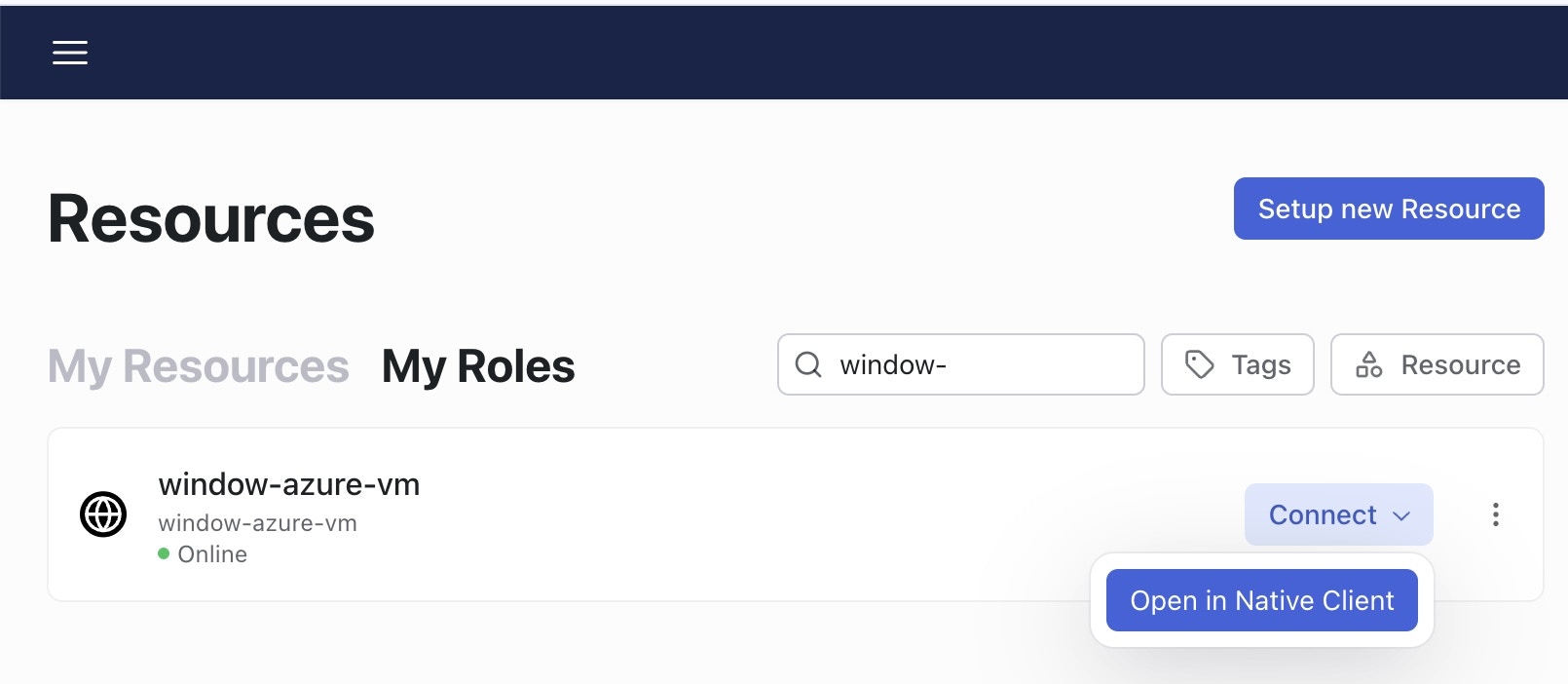
  <Step title="Generate a new credential on Hoop">
    1. Go to your Hoop instance > Resources > My Roles
    2. Select the dropdown "Connect" button and click in **Open in Native Client**
    3. Select the amount of time and copy the credentials information

    <Frame>
      <img src="https://mintcdn.com/hoopdev-fix-add-missing-mechanic-for-session-download-button/sFiCJBagbVJ6Ho5V/images/quickstarts/rdp-connection-2.jpg?fit=max&auto=format&n=sFiCJBagbVJ6Ho5V&q=85&s=de018359f705b168008d727d1ce39a8d" alt="Open Native Client" width="1610" height="702" data-path="images/quickstarts/rdp-connection-2.jpg" />
    </Frame>
  </Step>

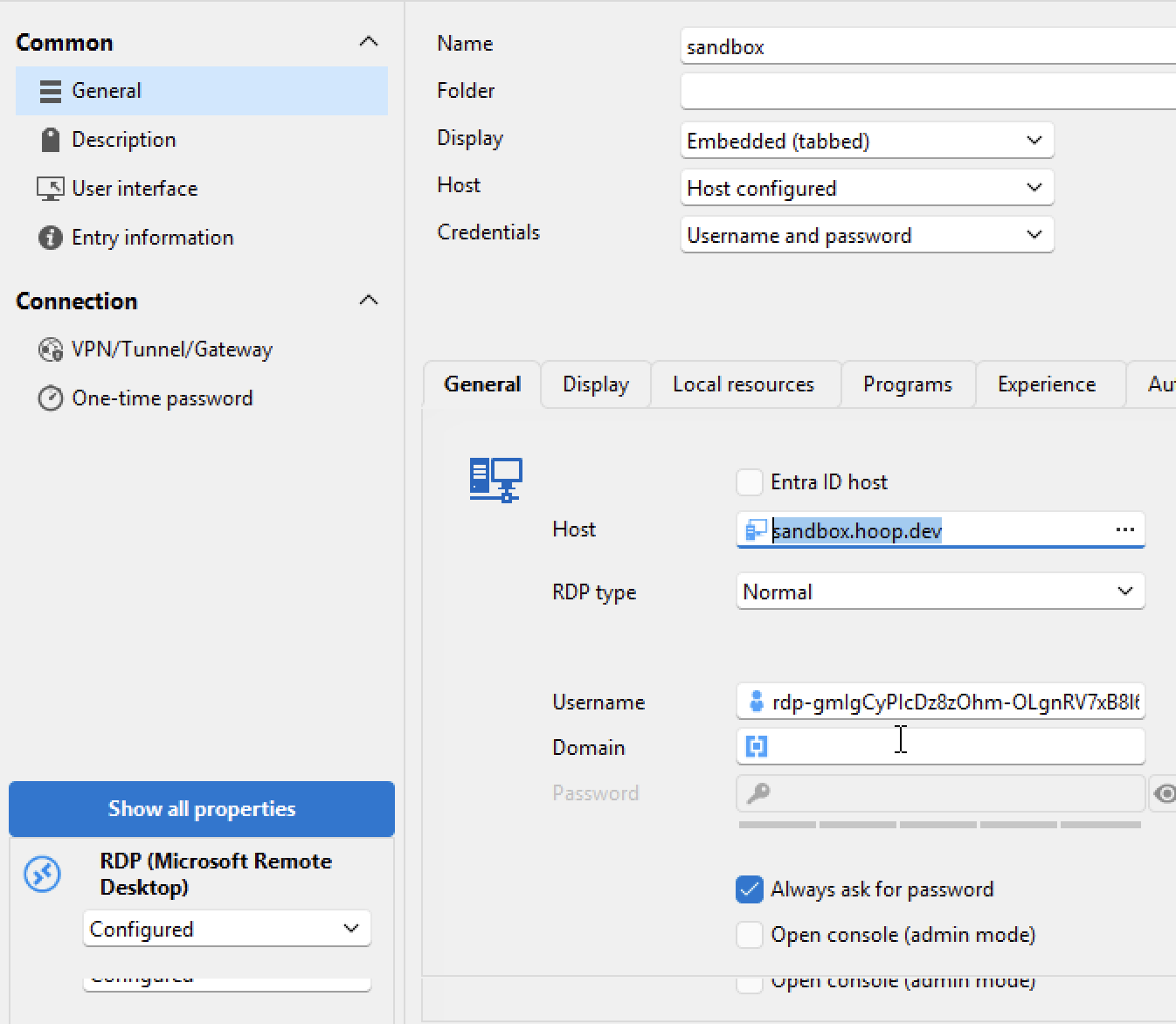
  <Step title="Add the credentials to the RDP client">
    1. Add the username
    2. Add the public address of the Hoop Gateway
    3. Save it

    <Note>
      Make sure to check the option "Always ask for password"
    </Note>

    <Frame>
      <img src="https://mintcdn.com/hoopdev-fix-add-missing-mechanic-for-session-download-button/sFiCJBagbVJ6Ho5V/images/quickstarts/rdp-connection-3.png?fit=max&auto=format&n=sFiCJBagbVJ6Ho5V&q=85&s=ca871b4f82bafdc02431447481158a0b" alt="Host Information" width="1346" height="1172" data-path="images/quickstarts/rdp-connection-3.png" />
    </Frame>
  </Step>

  <Step title="Connect">
    1. Click on "Open Session"
    2. Paste the password and it should connect remotely with your Windows instance.
  </Step>
</Steps>
