> ## Documentation Index
> Fetch the complete documentation index at: https://hoopdev-fix-add-missing-mechanic-for-session-download-button.mintlify.site/llms.txt
> Use this file to discover all available pages before exploring further.
# Access Control Configuration
> Configure and manage access control policies for your organization's resources
Access Control configuration allows you to define and manage who has access to what resources within your organization. This system helps maintain security while ensuring teams can efficiently access the tools they need.
## Getting Started
Find the access control section in the left sidebar and click on it.
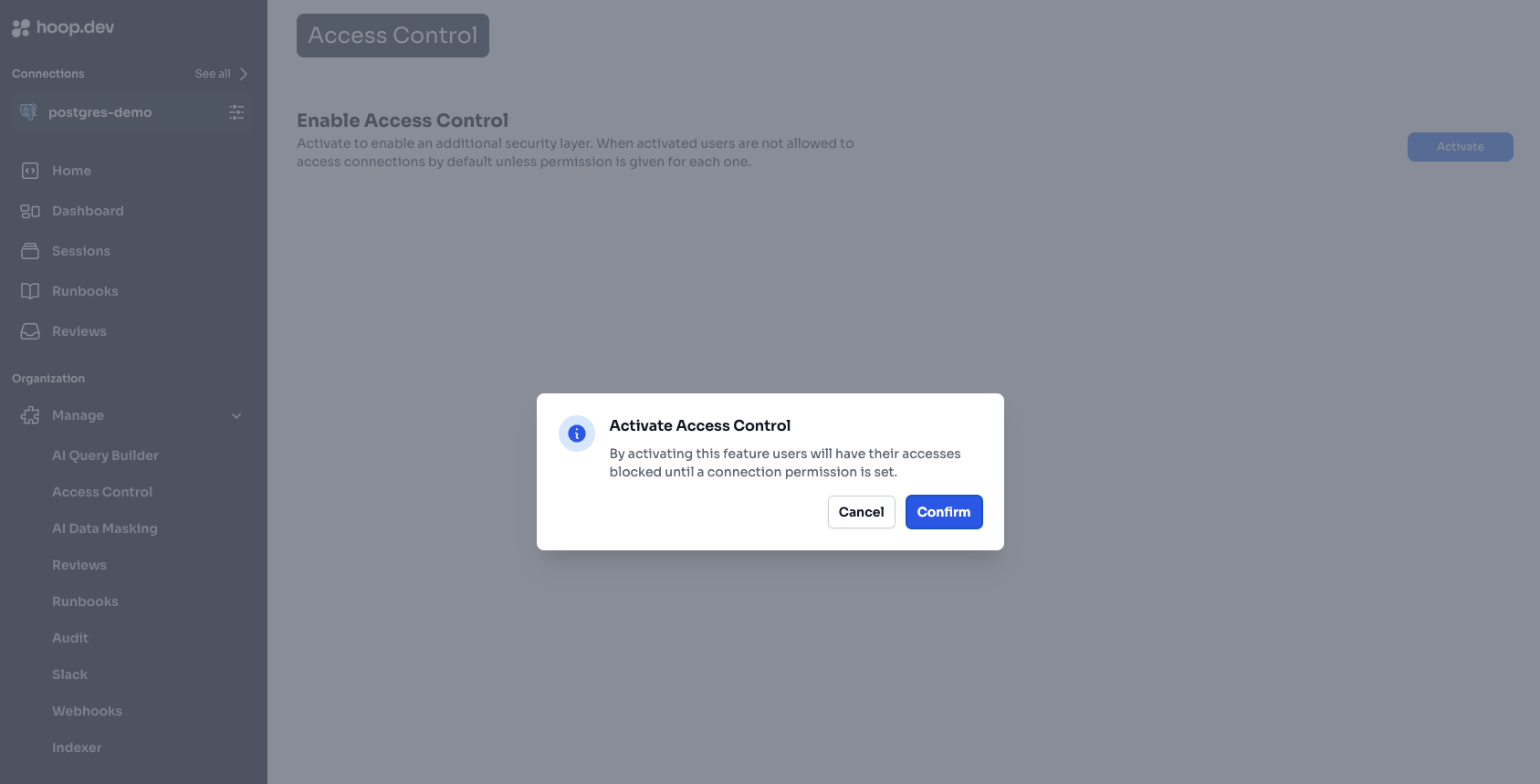
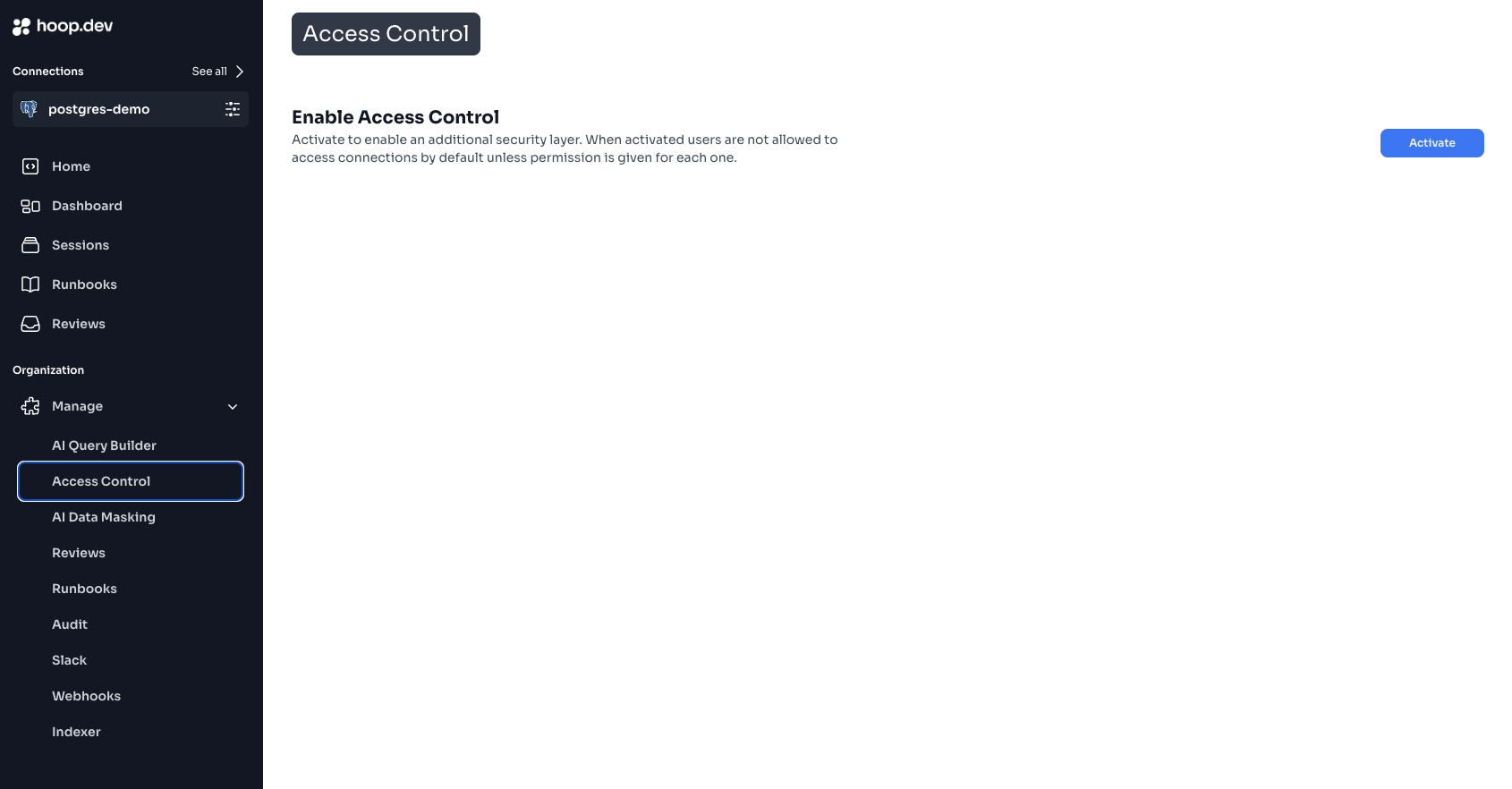 Make sure you are aware of the implications of activating access control to your organization, it will require manual configuration of each connection. After this is activated, users might stop seeing their connections if they don't have the right permissions.
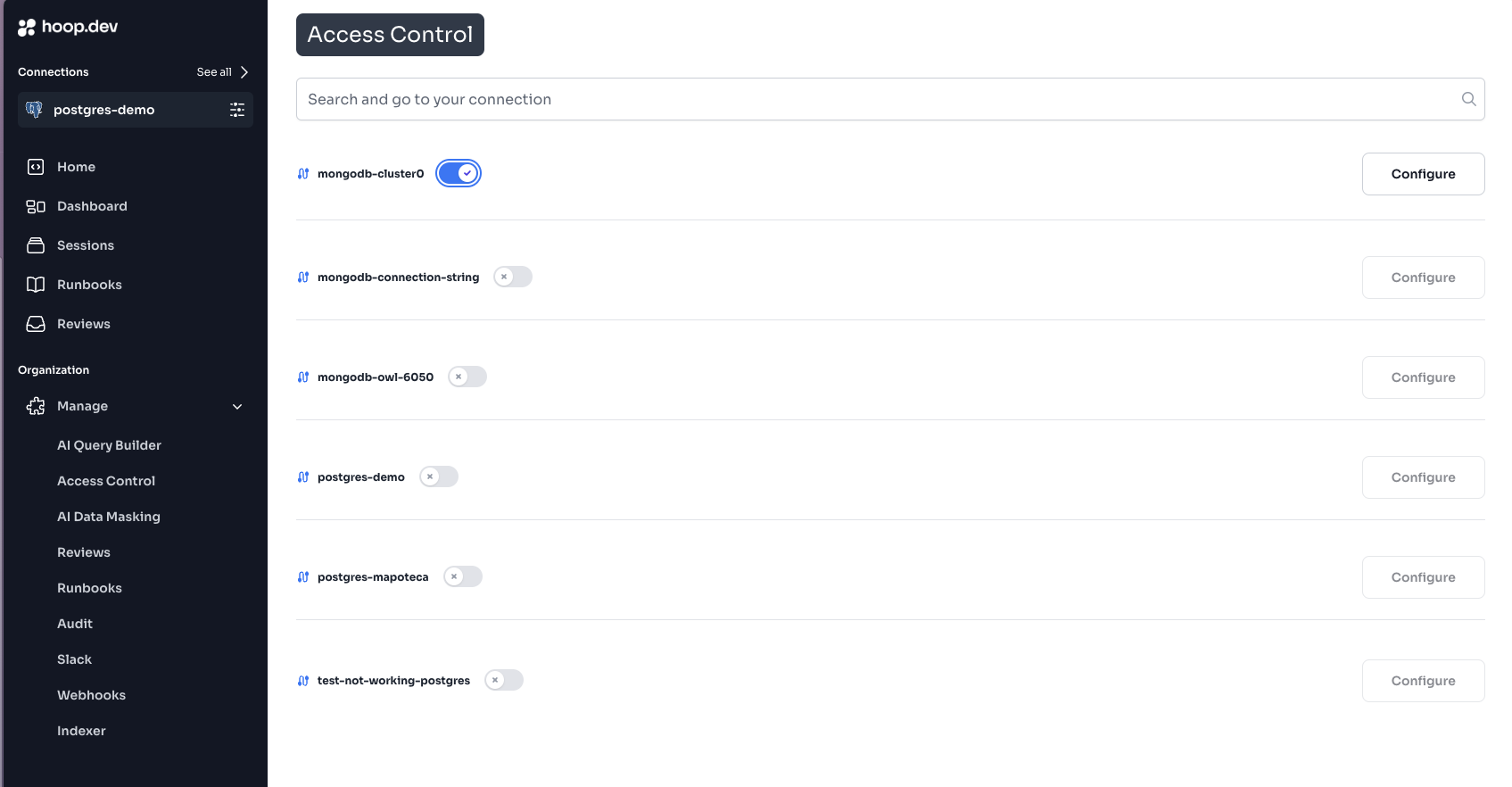
 In this step you will need to manually select and toggle the connections you want to apply access control to. If you don't toggle a connection, it won't apply the role groups and users might stop seeing them.
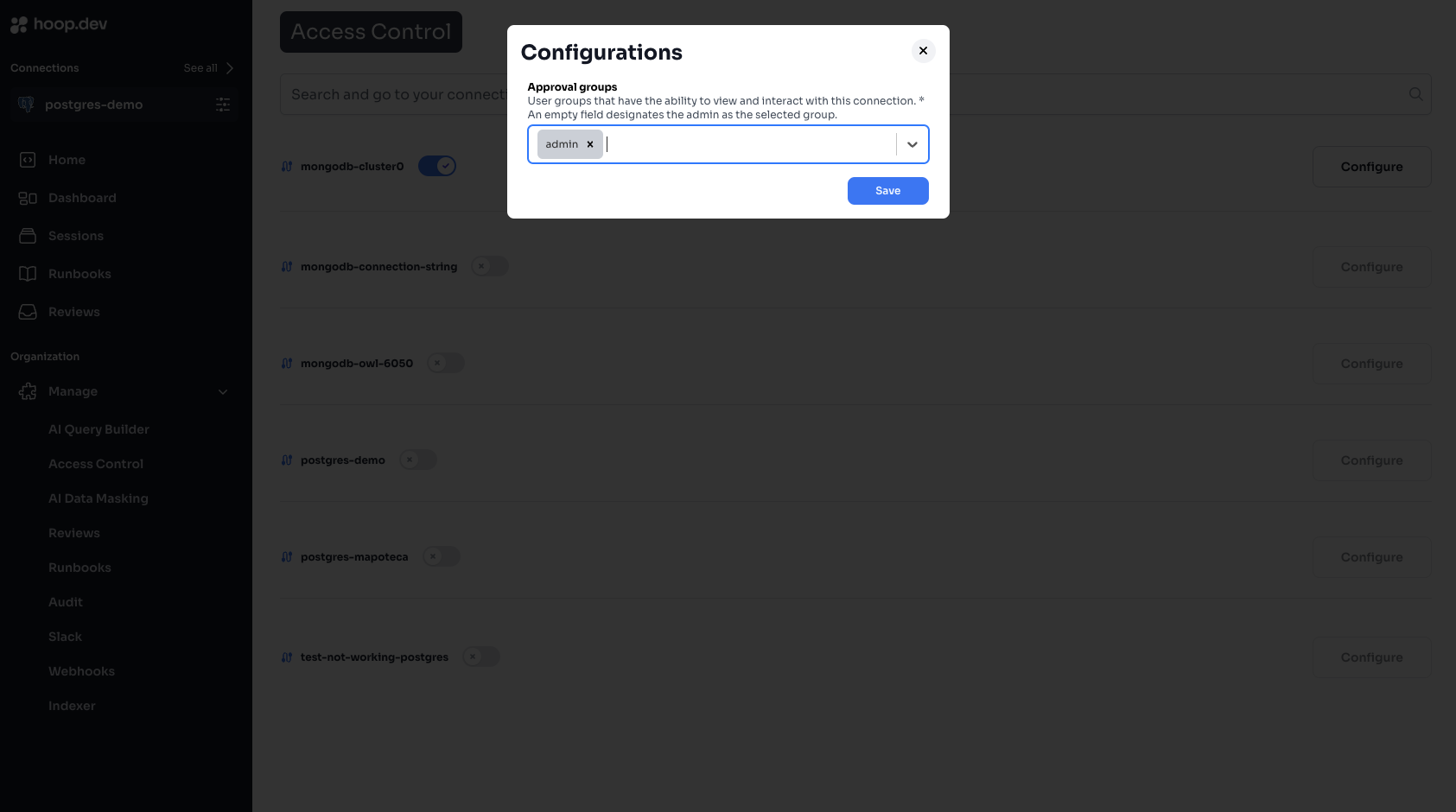
 Find the groups you want to give access to each connection
 ## Permission Types
### Connection Permissions
Rules that control access to specific connections:
* **View**: Can see and list connections
* **Use**: Can connect and execute queries
* **Manage**: Can modify connection settings
### Administrative Permissions
Rules that control system-level access:
* **User Management**: Control over user accounts
* **Group Management**: Ability to create and modify groups
* **System Configuration**: Access to system settings
### Group Management
Organize users into logical groups based on roles or teams
Set appropriate access levels for each group
Regularly audit group memberships and permissions
## Best Practices
Grant minimum necessary access
Review access permissions periodically
Prefer group-based over individual permissions
Maintain clear access policy documentation
## Learn More
Learn about security policy configuration
Configure SSO and identity management
## Permission Types
### Connection Permissions
Rules that control access to specific connections:
* **View**: Can see and list connections
* **Use**: Can connect and execute queries
* **Manage**: Can modify connection settings
### Administrative Permissions
Rules that control system-level access:
* **User Management**: Control over user accounts
* **Group Management**: Ability to create and modify groups
* **System Configuration**: Access to system settings
### Group Management
Organize users into logical groups based on roles or teams
Set appropriate access levels for each group
Regularly audit group memberships and permissions
## Best Practices
Grant minimum necessary access
Review access permissions periodically
Prefer group-based over individual permissions
Maintain clear access policy documentation
## Learn More
Learn about security policy configuration
Configure SSO and identity management